ONLINE LOGO

  Menu   Level 1 Level 2 Level 3   Help   More Angles


Instructions

One step is now one pixel, so the numbers you type in to the fd or bk commands need to be bigger.

ht (hide turtle)

st (show turtle)

setpos (set position)

setpos [0 0] takes the place of ct and sends the turtle to the middle.

seth (set heading)

seth 45 rotates the turtle to a bearing of 045°.

setpencolor

setpencolor "red takes the place of pc.

arc angle radius

Draws an arc centred on the turtle, starting at the turtle's heading, without moving it.
Example: arc 180 100

fill

setpencolor "yellow fill floods the area around the turtle with yellow.


Challenge 1

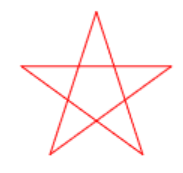
Use the repeat command to draw a red pentagram.
Challenge 1
Challenge 2

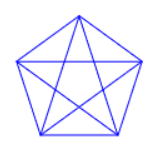
Create this blue diagram of a pentagram inside a pentagon. Include two repeat commands in your code.
Challenge 2
Challenge 3

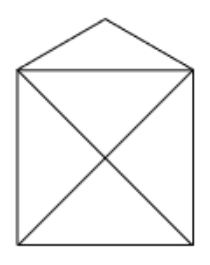
This envelope can be drawn without going over any line twice.
Challenge 3

Practise using bearings. Use seth for this challenge and do not use rt or lt.

Challenge 4

This diagram is a right angled triangle with a square on each side. The bottom square has sides of length 100 and the square on the left has sides of length 75. Work out the other lengths and angles, or make a scale drawing, before you start programming.
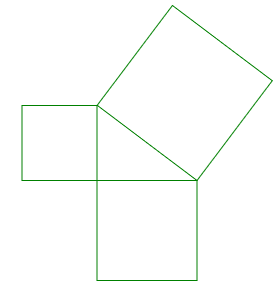
Challenge 4
Challenge 5

Your target is to draw this target with the help of the arc and fill commands.
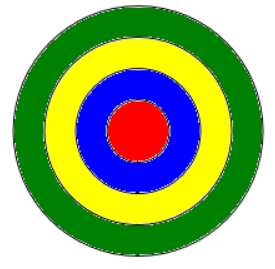
Challenge 5
Challenge 6

The mouth is open, making an angle of 60°.
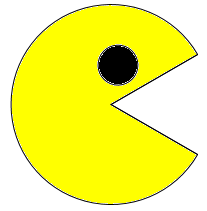
Challenge 6
Challenge 7

Construct a pie chart showing how you spend your time on a school day.

Start by working out how many hours you spend asleep, at school, eating, exercising and so on.

Challenge 8

Draw a diagram showing the construction marks made when an angle is bisected with a pair of compasses.
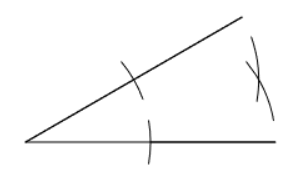
Challenge 8
Challenge 9

Time for a flower.

Challenge 9
Challenge 10

Copy this code into the command box and run it.

cs pu setpos [0 -150] repeat 3 [pd seth 300 arc 60 100 fd 100 pu bk 100 seth 0 fd 100] pd

That draws the left half of a symmetric diagram. Complete the diagram by drawing the right half.

Your trophy  
A virtual Transum Trophy celebrates the work you have done learning Logo at Level 2.


Many other online mathematical activities are available free at
Transum Software.


Logo PatternLogo is a simple programming language devised by Seymour Papert for educational purposes. Students can control the movement of a turtle which draws lines on the screen. Students learn about lengths and angles while creating diagrams and patterns. The learning takes place as students experiment, get feedback and revise their actions in a non-judgmental environment. Students develop a much better understanding of angles being an amount of turning than they do from more traditional, static exercises.


Logo is a wonderful application to use when learning about the properties of shapes and angles. Using the repeat command to draw a triangle usually results in a significant and poignant learning moment as students grasp the difference between the internal and external angles.

In the left panel you will find instructions and a series of ten challenges. Click the buttons to move through them. When you think you have answered a challenge, click the Check button and the computer will look at your drawing. Each challenge you complete earns a star, and seven stars unlock the trophy for that level. None of that gets in the way if you would rather simply draw: the challenges are entirely optional.

Students can use the snipping tool to capture pictures of their work which they can paste into their notes. Click the arrow in the corner of the command box to turn it into a larger editor where several lines of code can be typed before they are run.

Please send Transum pictures of anything magnificent you produce with this application, or describe your programming.

David Eisenstat, US

See how complex designs can be produced with only a small amount of code. This competition winner is called Dahlia:

repeat 8 [rt 45 repeat 6 [repeat 90 [fd 2 rt 2] rt 90]]

The 6 can be replaced with 1 to 7 for other flowers.

Wikipedia, The Free Encyclopedia

Seymour Papert (1928 – 2016) was a South African-born American mathematician, computer scientist, and educator, who spent most of his career teaching and researching at MIT. He was one of the pioneers of artificial intelligence, and of the constructionist movement in education. He was co-inventor, with Wally Feurzeig and Cynthia Solomon, of the Logo programming language.

He created Logo as a tool to improve the way children think and solve problems. Papert insisted a simple language or program that children can learn, like Logo, can also have advanced functionality for expert users.

Calormen.com,

To appreciate the recursive power of Logo try pasting this into the input area above:

to fern :size :sign
if :size < 1 [ stop ]
fd :size
rt 70 * :sign fern :size * 0.5 :sign * -1 lt 70 * :sign
fd :size
lt 70 * :sign fern :size * 0.5 :sign rt 70 * :sign
rt 7 * :sign fern :size - 1 :sign lt 7 * :sign
bk :size * 2
end
window clearscreen pu bk 150 pd
fern 25 1

David, US

Made a ring with a rainbow in the middle in the middle with this code:
setpencolor "purple
arc 360 100
arc 360 80
arc 360 60
arc 360 40
arc 360 20
setpencolor "red
arc 360 10
arc 360 9
setpencolor "Orange
arc 360 8
arc 360 7
setpencolor "yellow
arc 360 6
arc 360 5
setpencolor "green
arc 360 4
arc 360 3
setpencolor "blue
arc 360 2
arc 360 1.

AV, Australia

Is it possible to have a wait command, like the old Logo, to watch the pen draw?

Transum: Thank you for your question AV. There is a wait command but it is only available in Levels 2 and 3. Type the following to see the wait command in action:

repeat 8[fd 30 wait 60 rt 45]

Conner Jones,

repeat 8[fd 100 wait 60 rt 45] repeat 8[fd 90 wait 60 rt 45] repeat 8[fd 80 wait 60 rt 45] repeat 8[fd 70 wait 60 rt 45] repeat 8[fd 60 wait 60 rt 45] repeat 8[fd 50 wait 60 rt 45] repeat 8[fd 40 wait 60 rt 45] repeat 8[fd 30 wait 60 rt 45] repeat 8[fd 20 wait 60 rt 45] repeat 8[fd 10 wait 60 rt 45] repeat 8[fd 5 wait 60 rt 45] repeat 8[fd 4 wait 60 rt 45] repeat 8[fd 3 wait 60 rt 45] repeat 8[fd 2 wait 60 rt 45] repeat 8[fd 1 wait 60 rt 45]

Ali M And Wadee,

OK so this amazing command can only be used in Level 2: repeat 383 [pu fd 5 pd fd 1000 rt 89]

Ali M, A And W

To make a awesome circle do repeat 452 [pu fd 30 rt 20 fd 3 pd fd 20 lt 50 fd 20 rt 45 fd 40 lt 60 fd 22 rt 50 pu fd 45 rt 90 pd fd 20 ]

Dablue Addidas Farah Alkandari, Lil

repeat 8 [rt 45 repeat 6 [repeat 90 [fd 2 rt 2] rt 90]] The 6 can be replaced with 1 to 7 for other flowers.
repeat 8 [rt 45 repeat 6 [repeat 90 [fd 2 rt 2] rt 90]] The 6 can be replaced with 1 to 7 for other flowers

Ali M, A And W

To make a awesome circle do repeat 452 pu fd 30 rt 20 fd 3 pd fd 20 lt 50 fd 20 rt 45 fd 40 lt 60 fd 22 rt 50 pu fd 45 rt 90 pd fd 20 .

Aditya, Duddukuru

setpencolor "purple arc 360 100 arc 360 80 arc 360 60 arc 360 40 arc 360 20 setpencolor "red arc 360 10 arc 360 9 repeat 1000 [setpencolor "Orange arc 360 8 arc 360 7 setpencolor "yellow arc 360 6 arc 360 5 setpencolor "green arc 360 4 arc 360 3 setpencolor "blue arc 360 2 arc 360 1 fd 1]

Arc Pattern, Dan

pu
to arc2 :size
repeat 3.6*:size[arc 360 :size*10 fd 10 rt 360/(3.6*:size) wait 1]
end
to arc3 :size
repeat :size[arc2 :size fd 10 lt 360/:size]
end
arc3 10


change the number next to arc3 to make different patterns or arc2 instead with any number next to it for cool circles.

Konstantinos - Marilia,

The olympic logo
cs st pu fd 40 lt 90 fd 200 pd rt 90 setpencolor "blue repeat 360[fd 1 rt 1] pu rt 90 fd 130 lt 90 pd setpencolor "black repeat 360[fd 1 rt 1] pu rt 90 fd 130 lt 90 pd setpencolor "red repeat 360[fd 1 rt 1] pu lt 90 fd 190 lt 90 fd 70 rt 180 pd setpencolor "yellow repeat 360[fd 1 rt 1] pu rt 90 fd 130 lt 90 pd setpencolor "green repeat 360[fd 1 rt 1] ht

Maxwell, London

TO petal
repeat 2 [repeat 60 [fd 2 rt 1] rt 120] fillWithColour (random 1 6)
END
TO fillWithColour :colour
pu rt 30 fd 10 setpc :colour fill bk 10 lt 30 pd setpc 0
END
cs repeat 6 [ petal rt 60]

enter this to make a couloured petal.

Kourtney Owens, Canada

To make the windows logo:
to square repeat 50 [rt 90 fd 50 bk 50 lt 90 fd 1] end to windows pd setpencolor "red square pu bk 50 rt 90 fd 50 lt 90 setpencolor "green pd square pu bk 100 setpencolor "yellow pd square pu lt 90 fd 50 rt 90 bk 50 setpencolor "blue pd square end windows ht

Leah, London

to fern :size :sign if :size < 1 [ stop ] fd :size rt 70 * :sign fern :size * 0.5 :sign * -1 lt 70 * :sign fd :size lt 70 * :sign fern :size * 0.5 :sign rt 70 * :sign rt 7 * :sign fern :size - 1 :sign lt 7 * :sign bk :size * 2 end window clearscreen pu bk 150 pd
fern 25 1

James, Didcot

Rainbow hexagon code:
cs
setpencolor "red fd 60 rt 60
setpencolor "orange fd 60 rt 60
setpencolor "yellow fd 60 rt 60
setpencolor "green fd 60 rt 60
setpencolor "blue fd 60 rt 60
setpencolor "purple fd 60 rt 60.

Thomas George,

To see something amazing do :

REPEAT 100 [ FORWARD REPCOUNT * 2 RIGHT 90 ]

Valentin Rodriguez Del Pozo, Argentina

The following commands draw a figure that printed, cut, and properly folded form half a soccer ball. Print it twice, assemble the two halves and you'll have a paper model of a soccer ball. When cutting consider additional surfaces not drawn for glue...
Here are the commands:
repeat 5[fd 30 rt 72] fd 30 repeat 6[lt 60 fd 30] rt 72 fd 30 repeat 6[lt 60 fd 30] rt 72 fd 30 repeat 6[lt 60 fd 30] rt 72 fd 30 repeat 6[lt 60 fd 30] rt 72 fd 30 repeat 6[lt 60 fd 30] rt 72 fd 30 lt 60 fd 30 lt 60 repeat 5 [fd 30 rt 72] rt 180 lt 72 fd 30 lt 72 rt 180 repeat 6 [lt 60 fd 30] rt 72 fd 30 rt 72 lt 180 rt 60 fd 30 lt 120 rt 72 fd 30 lt 60 fd 30 lt 60 repeat 5 [fd 30 rt 72] rt 180 lt 72 fd 30 lt 72 rt 180 repeat 6 [lt 60 fd 30] rt 72 fd 30 rt 72 lt 180 rt 60 fd 30 lt 120 rt 72 fd 30 lt 60 fd 30 lt 60 repeat 5 [fd 30 rt 72] rt 180 lt 72 fd 30 lt 72 rt 180 repeat 6 [lt 60 fd 30] rt 72 fd 30 rt 72 lt 180 rt 60 fd 30 lt 120 rt 72 fd 30 lt 60 fd 30 lt 60 repeat 5 [fd 30 rt 72] rt 180 lt 72 fd 30 lt 72 rt 180 repeat 6 [lt 60 fd 30] rt 72 fd 30 rt 72 lt 180 rt 60 fd 30 lt 120 rt 72 fd 30 lt 60 fd 30 lt 60 repeat 5 [fd 30 rt 72] rt 180 lt 72 fd 30 lt 72 rt 180 repeat 6 [lt 60 fd 30] rt 72 fd 30 rt 72 lt 180 rt 60 fd 30 lt 120 rt 72

Kolby, Las Vegas, NV

cs repeat 145 [fd 45 rt 114 fd 100 rt 65 fd 30 rt 213 fd 50 rt 100 fd 65 rt 5]

This makes a beautiful multi-layered spirograph.

Person, Place

All of the colours for anyone who wants to them:
setpc 1 = blue
setpc 2 = green
setpc 3 = light blue (or teal)
setpc 4 = red
setpc 5 = purple
setpc 6 = yellow
setpc 7 = white (doesn't show on default background)
setpc 8 = light/pastel red
setpc 9 = light/pastel yellow
setpc 10 = light/pastel green
setpc 11 = light/pastel blue (repeat)
setpc 12 = light red again, not sure
setpc 13 = purple
setpc 14 = didn't show, unsure why
setpc 15 = grey
setpc 16 = a darker grey
setpc 17 = grey again, unsure why
setpc 18 = grey again
setpc 19 = grey AGAIN
from here, the colours just kept repeating so those are all the colours I had time for. hope you enjoy these colours I guess.

Cap'n Creative, UK

This never ending galaxy can only be done on level 2 or 3 but to make it you simply type in:

repeat 2000 [fd(random 1 1000) rt(random 1 1000)]

Daksh Narain, Gorakhpur

To see a magic, type:
REPEAT 100 [ FORWARD REPCOUNT * 2 RIGHT 90 ]

Vinayak, Greater Noida, Vinayak

This logo is more powerful than the normal logo in some ways.

Kian, Arkansas

Wonderful logo website, and the best one I have found. the only problem is I could not get the PROC or TO commands to work properly. if I could get some feedback on that, or an example of how to them, that would be great. thank you guys!

[Transum: Hi Kian, click on the Level 3 tab to see examples of how the To command works for building procedures.]

Kian, Arkansas

Thank you for answering my previous question. it was useful. it would be good if you could add the distance primitive though. I've tried to it and it doesn't have it.

Raavya Singh, Kunskapsskolan 4E

Arc 360 25 arc 360 50 arc 360 100 arc 360 125 arc 360 150 arc 360 200 arc 360 225 arc 360 250 arc 360 300 arc 360 325 arc 360 350 arc 360 400.

Thank you so much to everyone who shared their thoughts, your input is truly appreciated. However, due to the high volume of comments recently, the option to leave a comment is now only available to Transum subscribers. Thanks again for being part of our community!

The code required to complete the challenges is available to Transum subscribers by clicking on the Menu tab above.

Transum.org is a proud supporter of the kidSAFE Seal Program

Logo commands

Here is every command this version of Logo understands. The commands marked Level 2 and Level 3 work at Level 1 too, once you are ready for them. Remember that one step is one pixel from Level 2 onwards.

Description of levels

Level 1 - Basic use of Logo commands to draw shapes

Level 2 - Some more Logo commands to draw more complex shapes

Level 3 - Use Logo procedures to draw more complex diagrams

More on Angles including lesson Starters, visual aids and investigations.

About the stars

New in this version: the computer looks at your drawing and decides whether it answers the challenge. Judging a picture is a hard thing for software to do, so it will not always get it right. If you are sure your drawing answers the challenge but no star appears, show it to your teacher. Teachers with a Transum subscription can award the Logo trophy from their dashboard.

History

Every command you have typed this session. Click one to put it back in the command box.

Answers to this exercise are available in this panel when you are logged in to your Transum account. If you don’t yet have a Transum subscription one can be very quickly set up if you are a teacher, tutor or parent.

Log in Sign up